Merkblatt
Export TwinCAT TPY File
Inhalt
Vertraulichkeitshinweis
Die Informationen in diesem Dokument sind vertrauliche Informationen der alvasys automation ag ("alvasys"). Solche Informationen und die hier beschriebene Software werden unter Lizenzvereinbarung bereitgestellt und dürfen nur gemäss dieser Vereinbarung verwendet werden. Die in diesem Dokument enthaltenen Informationen werden ausschliesslich für den Gebrauch durch Mitarbeiter, Lizenznehmer und Systembesitzer von ALVASYS bereitgestellt. Der Inhalt dieses Dokuments darf nicht an andere weitergegeben oder für andere vervielfältigt werden. Obwohl alle Anstrengungen unternommen wurden, um die Richtigkeit dieses Dokuments zu gewährleisten, ist ALVASYS nicht verantwortlich für Schäden jeglicher Art, einschliesslich Folgeschäden, die aus der Anwendung der hier enthaltenen Informationen resultieren. Informationen und Spezifikationen, die hier veröffentlicht werden, sind zum Zeitpunkt dieser Veröffentlichung aktuell und können ohne vorherige Ankündigung geändert werden. Dieses Dokument darf von Parteien, die autorisiert sind, ALVASYS-Produkte im Zusammenhang mit der Verteilung dieser Produkte zu verteilen, kopiert werden, unter der Bedingung, dass dies durch die Verträge autorisiert ist, die eine solche Verteilung ermöglichen. Es darf anderweitig, ganz oder teilweise, nicht kopiert, fotokopiert, reproduziert, übersetzt oder in irgendeiner elektronischen Form oder maschinenlesbaren Form reduziert werden, ohne vorherige schriftliche Zustimmung von ALVASYS.
Export a symbol file from your TwinCAT project
Configure the TwinCAT project development software to export a symbol file that provides information about your TwinCAT project database. The symbol file can then be used to bring your TwinCAT project database into your InduSoft Web Studio project database, via either tag integration or the database import wizard.
The TwinCAT software automatically exports your project database to a symbol file every time you rebuild your project. TwinCAT exports the entire database by default, however, including many system and library variables that InduSoft Web Studio cannot import. You must reconfigure your project options to export only the POUs and Global Variables, and then rebuild your project to generate a fresh symbol file.
Note: As of version 2.8, the TwinCAT software exports the symbol file in both *.SYM and *.TPY
formats:
*.SYM is a legacy format that is included for backward compatibility. Beckhoff recommends that it be used only with TwinCAT OPC Server.
*.TPY is a new, XML-based format that should be used in all other situations, including importing into IWS.
To export the symbol file:
- Open your TwinCAT project using the TwinCAT software.
- On the Project menu, click Options. The Options dialog box is displayed.
- In the Category list, click Symbol configuration.
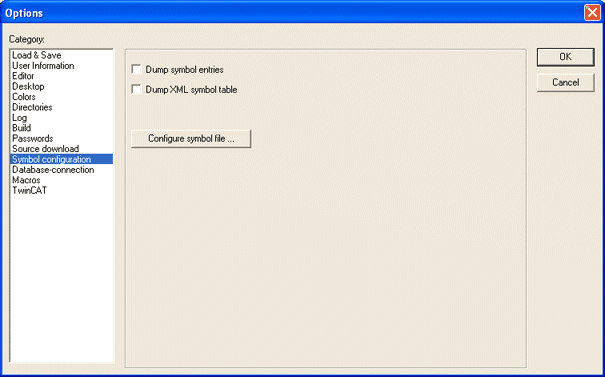
1. Select Dump symbol entries and Dump XML symbol table.
2. Click Configure symbol file. The Set object attributes dialog box is displayed.
3. For the sake of expediency, you should first disable the export of all objects and then reenable only
the objects that you want to export — typically, the POUs and Global Variables. Select all of the
objects in the tree, and then clear all options for them at the bottom of the dialog box.
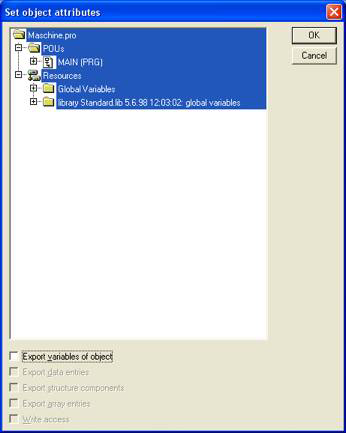
Tip: You may need to select Export variables of object in order to activate the other check boxes before clearing them.
4. Reselect only the POUs and Global Variables that you want to export. Do not select libraries. With
the objects selected, select all of the options at the bottom of the dialog box.
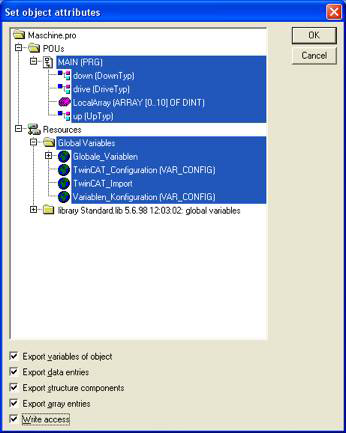
5. Click OK to close the Set object attributes dialog box, and then click OK again to close the Options
dialog.
6. On the Project menu, click Clean All.
7. On the Project menu, click Rebuild All. The TwinCAT software will rebuild the project, and in the
process of rebuilding, it
will export a symbol file that contains only the selected POUs and Global Variables.
Once the TwinCAT project is configured to export the selected variables, the next time you send the project to the PLC, it will include the new symbol file and your IWS project to be able to communicate with it.
You can also copy the TwinCAT symbol file to your IWS project folder, which will allow you to browse the tags when the PLC is not running.
Dokumentenhistorie
Name | Datum | Änderung |
Marcello Meriano | 06.05.2026 | Dokument erstellt |
|
|
|
|
|
|
Links:
https://www.alvasys.ch/support
https://www.youtube.com/@alvasysautomationag3852
Kontakt:
Für Fragen, Wünsche oder Feedbacks.
War dieser Artikel hilfreich?
Das ist großartig!
Vielen Dank für das Feedback
Leider konnten wir nicht helfen
Vielen Dank für das Feedback
Feedback gesendet
Wir wissen Ihre Bemühungen zu schätzen und werden versuchen, den Artikel zu korrigieren